
Do you receive IndiaMART inquiries in Gmail and reply to buyers one by one? This takes time. You open an email, read the buyer’s question, type a reply, and send it. When many inquiries arrive, it is easy to fall behind.
With SwiftMaze CRM, you can connect the Gmail inbox that receives IndiaMART inquiries and set up automatic email replies. You can also read our guide to automatic WhatsApp replies for IndiaMART leads, but this article covers email replies, not WhatsApp messages.
For email replies, you connect two things: the Gmail account that receives inquiries and an email-sending account through SMTP. SMTP simply means a way for an app to send emails through your email provider. Then you set the reply message. SwiftMaze CRM can read supported inquiry emails, collect buyer details, and send a personal email reply when a usable buyer email address is available.
This guide explains the process, the setup, a sample reply, and the checks you should make before turning on the automation.
How to Send Automatic Email Replies to IndiaMART Leads
Quick answer: Connect the Gmail inbox where IndiaMART sends inquiry emails to SwiftMaze CRM. Add the email account you want to send replies from using its supported SMTP settings. Create an email reply, choose the information you want to include, and test the automation with a sample inquiry.
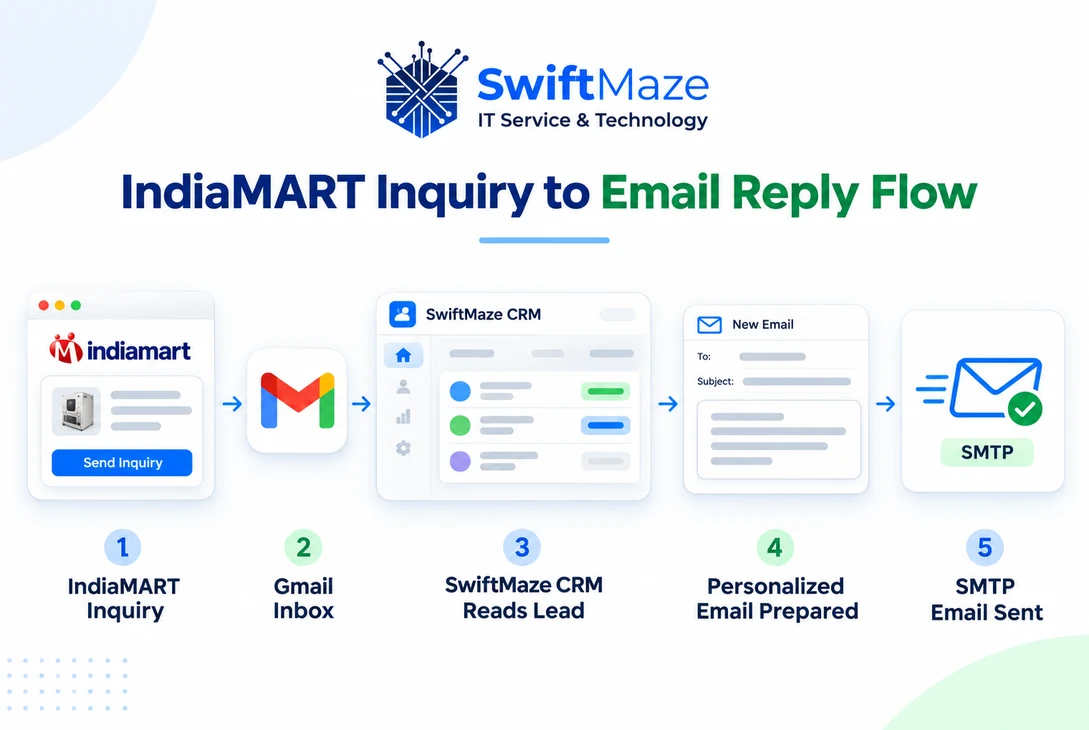
The flow is simple: IndiaMART Inquiry → Gmail → SwiftMaze CRM → Buyer Details → SMTP Email Reply.
When a supported inquiry arrives, the CRM can read the email and collect lead details. If the buyer’s email address is present and the sending account is ready, the system can send the reply without you typing it each time.
Why Do IndiaMART Inquiries Need an Email Reply?
Buyers often ask more than one supplier about a product. They may want a price, product size, minimum order, or delivery details. A reply lets the buyer know that your business has received the question.
For example, a packaging supplier may get inquiries while the sales team is busy with orders. If every email must be opened and answered by hand, replies can be delayed. An automatic first reply gives the team more time to prepare a useful answer.
An automatic email is not a sales guarantee. It should thank the buyer and explain the next step, not promise a price or delivery date that has not been checked.
Read More: See how CRM systems help teams manage new leads and follow-ups.
What Is IndiaMART Automatic Email Reply?
IndiaMART automatic email reply means sending a prepared email to a buyer after a new inquiry is received and the needed buyer details are available.
There are different ways to do this. Some tools bring leads from IndiaMART using its API. The method in this guide works with the IndiaMART inquiry notifications already received in Gmail. It does not need a paid IndiaMART lead-pull API for this email-based route.
The sending part uses SMTP. You can use a suitable email service that offers SMTP access. Some email services include SMTP sending in a free plan, but sending limits, account rules, and any fees depend on your provider.
How the Gmail to Email Reply Process Works
1. A Buyer Sends an IndiaMART Inquiry
A buyer asks about your product on IndiaMART. The inquiry may include a name, phone number, product, and message.
2. The Inquiry Email Arrives in Gmail
Your business receives an IndiaMART inquiry notification in the Gmail account used for this process. The email must reach that inbox for the automation to see it.
3. SwiftMaze CRM Reads the Buyer Details
SwiftMaze CRM checks supported inquiry emails and saves available lead information, such as the buyer’s name, phone number, product, and message. The system also needs a valid buyer email address to send an email reply.
Important: Not every inquiry email will contain every detail. If the buyer’s email address is missing or hidden, an automatic email cannot be sent to that buyer from the information in that email alone.
4. The CRM Prepares a Personal Email
The CRM uses the reply text you set. For example, it can include the buyer’s name and product when those fields are available and correctly connected to your message.
5. SMTP Sends the Email
The connected sending account handles the outgoing email. Your sales team can then check the inquiry and give the buyer a detailed answer when needed.
[IMAGE PLACEHOLDER — IMG-02: Five-step IndiaMART to Gmail to SwiftMaze CRM to SMTP email reply diagram. Replace with the final image before publishing.]
What Do You Need Before Starting?
An IndiaMART Account That Sends Inquiry Emails
Make sure your IndiaMART inquiry emails are reaching Gmail. Check a recent real inquiry before you begin.
Access to the Correct Gmail Account
You need access to the inbox receiving those inquiries. SwiftMaze CRM connects the Gmail inbox using Google’s account sign-in and permission process. You should not share your normal Google password with anyone.
An Email Account That Can Send Through SMTP
You also need an email account to send replies. The SwiftMaze CRM screen in this guide uses Gmail SMTP, which lets the CRM send emails from a Gmail address. You can choose the sender name and email address in the setup. If your business uses a different sending service, check which options your CRM account supports.
SMTP is the sending connection. Gmail access is the reading connection. Connecting Gmail for reading does not automatically set up your outgoing SMTP email.
A Buyer Email Address and a Clear Reply
Make sure the incoming email contains a buyer email address that the CRM can use. Write a short reply that says who you are and what happens next.
How to Set Up Automatic IndiaMART Email Replies in SwiftMaze CRM
Step 1: Sign In to SwiftMaze CRM
Open your CRM account and check that your account includes the new Gmail inquiry and email reply automation feature. The exact options can depend on the setup enabled for your business.
Step 2: Connect Your Gmail Inbox
Go to the Google Workspace or Gmail connection area in SwiftMaze CRM. Select the Gmail account receiving your IndiaMART inquiries and choose Continue with Google or the Google connection option shown in your CRM.
Google will ask you to review access. Once you approve it, return to SwiftMaze CRM and check the Gmail connection status.
For details on how connected Gmail information is used, read the SwiftMaze Privacy Policy.
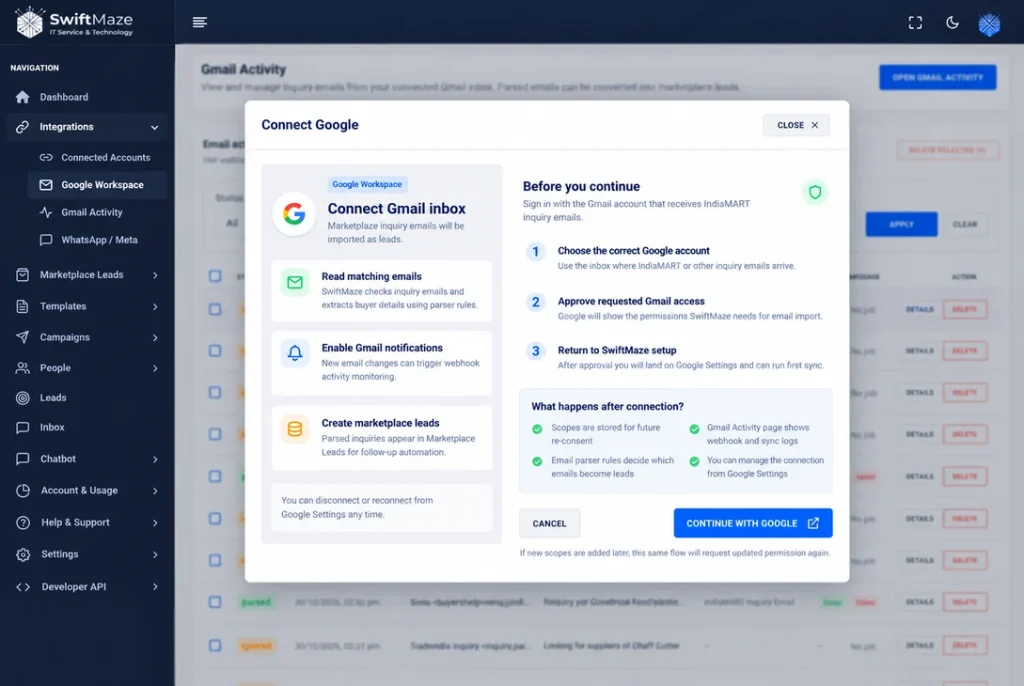
Gmail connection screen in SwiftMaze CRM. Use the inbox receiving IndiaMART inquiries.
Step 3: Connect Your Sending Gmail Account
After connecting the Gmail inbox that receives inquiries, open Integrations → Email → SMTP Accounts in SwiftMaze CRM. You can also open Email Sender Accounts after signing in.
In the Connect Gmail section, choose Gmail SMTP and complete the fields shown on the page:
- Gmail / From Email: The Gmail address that will send the automatic reply.
- From Name: The business name buyers should see.
- Reply-To Email (Optional): The email address where you want buyer replies to go, if different.
- Gmail App Password: A separate Google app password for this sending connection, not your usual Gmail password.
- Daily Email Limit: The limit you want to set for this sender within the CRM.
Turn on Enable sending, then select Verify & Save. Once the account is ready, use Send Test Email to check the connection.
To create a Google app password, your Google account generally needs 2-Step Verification turned on. Some Google accounts may not offer app passwords. Read Google’s app password instructions before setting this up. Keep your app password private.
Note: The 100 emails/day shown in our sample screenshot is an example of a CRM sender setting. It is not a promise that Gmail gives every account that daily allowance. Google and your CRM may apply different limits.
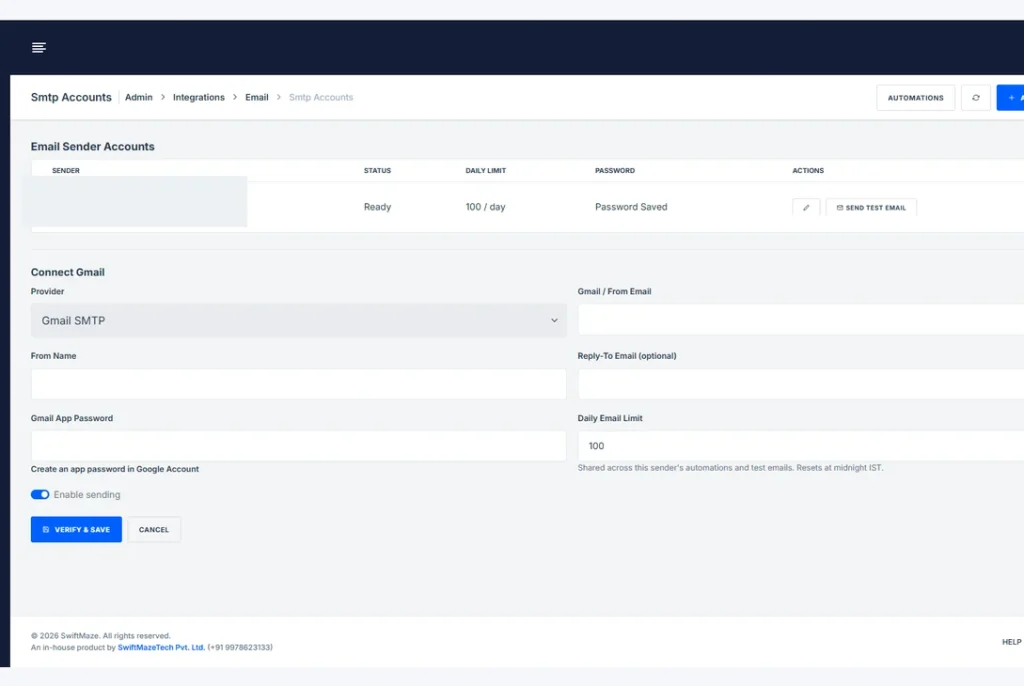
Real SwiftMaze CRM email sender setup. Private account information has been hidden.
Step 4: Write the First Reply Email
Prepare a short email that thanks the buyer for the inquiry. Use the buyer’s name and product only if those details are available. Avoid adding prices or delivery promises that your team has not confirmed.
Here is a sample message you can adapt:
Subject: We Received Your IndiaMART Inquiry About [Product]
Hello [Buyer Name],
Thank you for asking about [Product] on IndiaMART.
We have received your inquiry. Our team will check your needs and reply with more details.
If you have a preferred size, quantity, or delivery location, please reply to this email and let us know.
Regards,
ABC Packaging Sales Team
This is sample text, not a message that has been sent. The words in square brackets should be filled with real buyer details through your configured automation.
Step 5: Turn On Email Replies in Lead Automation
Open Integrations → Lead Automation in SwiftMaze CRM. You can open the Lead Automation page after signing in. Create a new automation or edit an existing one for your IndiaMART inquiries.
In the Email Message section, turn Send Email on. Then:
- Select the Gmail account you saved under Sender Account.
- Set the Email Delay (minutes) if you want a short delay before sending. The screenshot shows 2 minutes as one example.
- Enter a clear Subject for the message.
- Write your reply in Email Message.
- Use Insert Field, then Add to Subject or Add to Message to include available lead details.
- Check the Email Preview and click Update Automation to save changes.
For example, the subject can include a product name or buyer name when that information is available. The screenshot also shows a city field, but it will only work when the CRM has that detail for the lead.
Important: The automation screen says leads without a valid email address are skipped for email sending only. This means the CRM should not try to email an address that is missing or invalid.
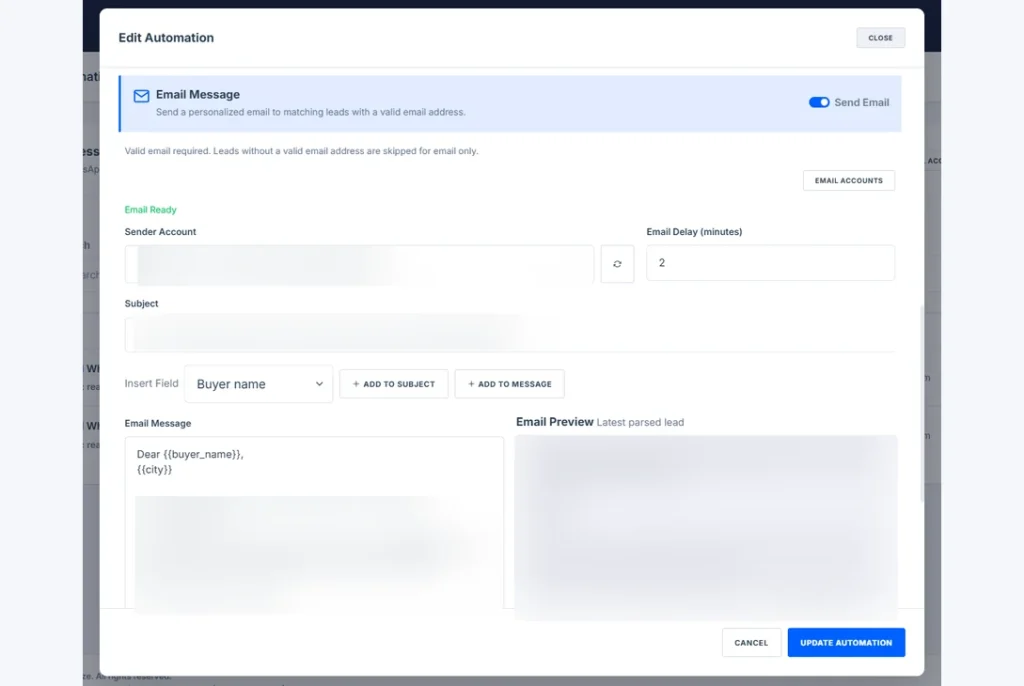
SwiftMaze CRM email automation settings. Turn on Send Email, select the sender, and review the message before saving.
Step 6: Test With a Sample Inquiry
Use a permitted test inquiry and an email address that you control. Make sure the inquiry arrives in Gmail and that the CRM reads it correctly.
- Check the buyer email address and other saved details.
- Use Send Test Email to confirm that the Gmail sender account works.
- Check that Send Email is on, the correct Sender Account is selected, and the subject and message preview look right.
- Confirm that the test email reaches the right inbox.
- Check what happens if the buyer email is missing.
- Test a repeated inquiry so the same buyer does not receive unwanted copies.
Step 7: Keep an Eye on Replies
After you turn on the automation, your team should still read buyer questions, check send errors, and follow up on real requests. An automatic thank-you email is only the start of a good reply.
Example: A Packaging Supplier Receives a New Inquiry
Suppose a buyer named Amit sends an IndiaMART inquiry about 2,000 cardboard boxes. The inquiry email reaches your Gmail inbox.
SwiftMaze CRM reads the supported email and saves the details. If Amit’s usable email address is available, the CRM can send the prepared acknowledgment using the connected SMTP account.
The email might say: “Hello Amit, thank you for asking about cardboard boxes. Our team has received your inquiry and will share the next details.”
The sales team can then check the box size, quantity, printing needs, and delivery place before sending a quote. The first reply is automatic; the real product answer still comes from your team.
Benefits of Sending Automatic Email Replies
Less Copying and Typing
Your team does not need to write the same first email for every supported inquiry.
A Clear First Response
The buyer gets a simple note that your business has received the question, if the email can be sent successfully.
A More Personal Message
The reply can mention the buyer and product when those details are available.
Better Follow-Up Work
Lead details are kept in the CRM, helping the sales team see what the buyer asked about.
No Paid IndiaMART Lead-Pull API for This Method
Because the system works with supported inquiry emails that reach Gmail, it does not need a paid IndiaMART API plan for pulling those leads. The CRM plan and email-sending provider may still have fees or limits.
Read More: If your team also contacts buyers on WhatsApp, see how IndiaMART leads can get automatic WhatsApp replies. That is a separate sending method.
Gmail Email Replies vs IndiaMART API-Based Email Automation
| Point | Gmail-Based Reply | IndiaMART API-Based Method |
|---|---|---|
| How leads arrive | Through inquiry emails in Gmail | Through data returned by IndiaMART API access |
| Paid IndiaMART lead API | Not needed for this email-based route | Depends on API access and the IndiaMART plan |
| Sending replies | Through your connected SMTP email account | Depends on the sending service used |
| Lead information | Details available in supported emails | Details allowed by the API |
| What can stop a reply | Missing buyer email, email format, or sending error | API, data, or sending service errors |
The email-based method is a simple choice when your inbox already receives the lead details you need. An API-based method may be better if your business needs fields that are not present in the email.
What Should You Check Before Sending Automatically?
Make Sure the Buyer Can Receive Your Email
An inquiry is not always the same as permission to send ongoing offers. Keep the first reply about the request and do not add buyers to unrelated email promotions without the right permission.
Check Your Email Provider’s Sending Limits
Free email services do not offer unlimited sending. Google has its own sending limits, and SwiftMaze CRM also lets you set a daily limit for each sender. Read the official Gmail sending limits before choosing your limit.
Keep Your Sending Address Trusted
Use a real business email address. If you send from your business domain, make sure your email provider has set up the records that help other inboxes trust your mail. Google’s email sender guidelines explain this in more detail.
Avoid Sending the Same Reply Again and Again
Repeated inquiry emails or repeated checks should not lead to unwanted copies. Test how your configured rule handles the same inquiry more than once before using it with customers.
Keep a Human Ready to Reply
A prepared email cannot answer every question. Your sales team still needs to check product needs, share prices, and reply when the buyer asks for more help.
Frequently Asked Questions
Can I Send Automatic Email Replies to IndiaMART Inquiries?
Yes. With SwiftMaze CRM, you can connect the Gmail inbox receiving supported IndiaMART inquiries and a separate SMTP sending account. When the buyer’s usable email address is available, the configured rule can send a prepared reply.
Do I Need a Paid IndiaMART API?
No paid IndiaMART lead-pull API is needed for this email-based method. The inquiry must arrive in Gmail with the details needed for the reply.
What Is SMTP in Simple Words?
SMTP is the way an email program sends outgoing mail through an email provider. In this setup, Gmail receives the inquiry and SMTP sends the reply.
Is SMTP Completely Free?
Not always. Some providers include SMTP access with a free account or plan, while others charge for it. Most providers also limit how many emails you can send.
Can I Use One Gmail Address to Receive and Send?
It may be possible if the account and your sending setup support it. The inbox connection and the sending connection still need to be set up correctly. You can also use a separate sending address where supported.
What If the IndiaMART Inquiry Has No Buyer Email Address?
The CRM needs a usable email address to send an email to that buyer. If one is missing or hidden, the reply cannot be sent from that inquiry alone. Your team may need another contact method.
Does an Automatic Reply Mean the Buyer Has Read It?
No. Sending an email does not prove that the buyer received or read it. Email delivery can fail, and messages may go to spam.
Is This the Same as WhatsApp Automation?
No. This guide is about automatic email replies sent through SMTP. SwiftMaze also has a different IndiaMART workflow for WhatsApp messaging. The two methods use different sending tools and rules.
Final Thoughts
Answering every IndiaMART email by hand takes time, especially when several buyers contact your business in one day. A clear automatic first reply can reduce that work.
SwiftMaze CRM can connect the Gmail account receiving inquiries, read supported lead details, and use your connected SMTP sending account to send a prepared email when the buyer’s address is available.
Start with a simple message. Test the full process. Then let your sales team focus on useful answers, quotes, and customer follow-ups.
To discuss this new email reply feature, contact the SwiftMaze Tech team. You can also explore SwiftMaze CRM and its lead-management features.
Last modified: November 4, 2026