
Do you get buyer inquiries on TradeIndia but still send WhatsApp replies one by one? When your team is busy, a new inquiry may wait for a response. You need to open the seller account, check the buyer’s details, save the number, and write a message.
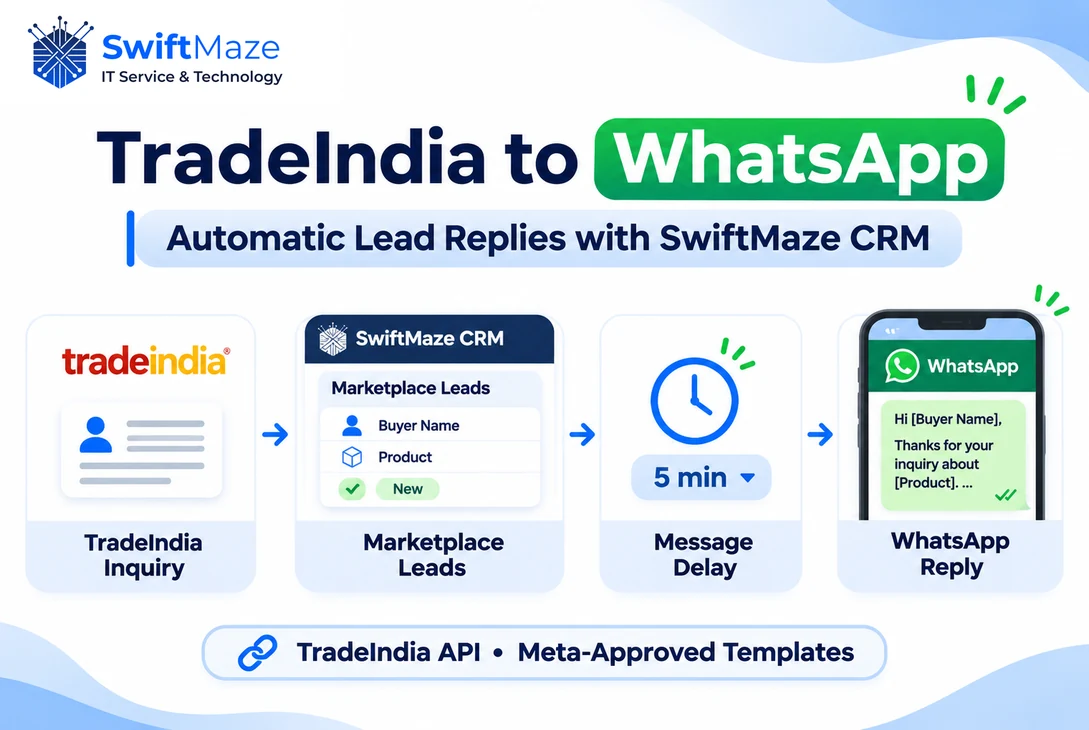
SwiftMaze WhatsApp CRM helps businesses bring TradeIndia inquiries into one place and prepare automatic WhatsApp replies. Instead of typing the same first message each time, you can connect your TradeIndia inquiry feed, choose an approved message, and set when it should be sent.
This guide explains how to connect TradeIndia leads to WhatsApp using the TradeIndia API and SwiftMaze CRM. If you receive IndiaMART leads through Gmail instead, read our guide to IndiaMART WhatsApp automation without a paid lead-pull API. The TradeIndia setup in this article uses a different method: it fetches inquiries from TradeIndia’s API.
Quick Answer: How to Automate WhatsApp Replies for TradeIndia Leads
To send automatic WhatsApp replies for TradeIndia inquiries, connect your eligible TradeIndia seller account to SwiftMaze CRM through the inquiry API. Then connect an eligible WhatsApp Business number through Meta onboarding, prepare an approved message template, and create an automation with a sending delay such as immediately, 5 minutes, or 10 minutes after the CRM receives a lead.
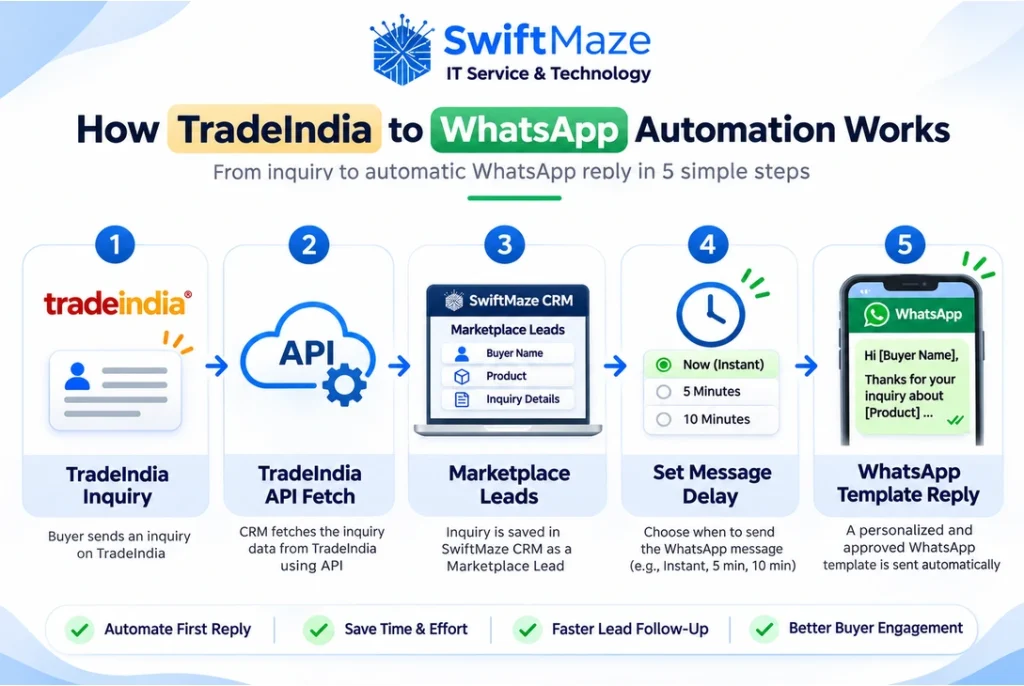
The basic flow is TradeIndia Inquiry → TradeIndia API → SwiftMaze Marketplace Leads → Message Delay → WhatsApp Reply. A message is sent only when the lead has the needed details and the required WhatsApp permission and sending conditions are met.
Why TradeIndia Inquiry Follow-Ups Take Time
TradeIndia is used by buyers to contact suppliers about products, quantity, price, and other needs. A manufacturer may receive questions while the team is packing orders or working with existing customers.
For example, a buyer may ask about 500 packaging boxes. The seller can read the inquiry in TradeIndia, call the buyer, or write a reply. But doing this for every new inquiry takes time. TradeIndia’s own seller guide explains how sellers review and reply to inquiries in their account.
An automatic first response can let the buyer know the request was received. It does not replace a real salesperson, confirm a quotation, or guarantee a sale. For more about keeping conversations organized, read our guide to managing customer chats in a shared inbox.
What Is TradeIndia WhatsApp Automation?
TradeIndia WhatsApp automation means using software to collect incoming buyer inquiries and send a prepared WhatsApp message without asking a team member to type the first reply each time.
SwiftMaze CRM uses the TradeIndia inquiry API to fetch available leads. These inquiries appear in the Marketplace Leads area of the CRM. You can then use a connected WhatsApp number and an approved message template to send a personal reply.
The TradeIndia API and WhatsApp messaging are separate parts of this process. TradeIndia provides inquiry information. Meta’s WhatsApp Business Platform sends the message. The CRM connects the two steps.
How TradeIndia to WhatsApp Automation Works
1. A Buyer Sends an Inquiry on TradeIndia
A buyer finds a product and sends an inquiry to a supplier. The request may include the buyer’s name, phone number, product, and message, based on the details TradeIndia makes available.
2. SwiftMaze CRM Fetches the Inquiry
SwiftMaze CRM connects to the seller’s TradeIndia inquiry API and checks for available inquiries. A new inquiry becomes a record in Marketplace Leads after it is fetched. API access depends on the seller account and its eligible services.
3. The CRM Prepares the Message
The CRM uses available lead details to fill the approved WhatsApp template. For example, a buyer’s name and the requested product can appear in the reply. Only information that is present and correctly matched should be used.
4. The Chosen Delay Is Applied
You can choose when the message should be sent after the lead enters the automation. Examples include an immediate send, a 5-minute delay, or a 10-minute delay. The actual delivery time also depends on when the API fetch finishes, the scheduled sending process, and WhatsApp availability.
5. WhatsApp Sends the Reply
When the time arrives and all sending rules are met, the CRM sends the template through the connected WhatsApp Business number. Your team can then answer buyer questions about price, availability, or delivery.
What Do You Need Before Starting?
- TradeIndia seller account: An account with access to its inquiry API and the required connection details.
- SwiftMaze CRM account: Access to Marketplace Leads, Meta integration, templates, and automation features.
- WhatsApp Business number: An eligible existing WhatsApp Business App number or a new number that can be connected through the supported Meta onboarding process.
- Approved WhatsApp template: A template in the category accepted by Meta for the message you plan to send.
- Buyer consent: Valid permission to contact the buyer on WhatsApp. An inquiry on TradeIndia alone is not proof of WhatsApp opt-in.
The WhatsApp CRM vs WhatsApp Business App guide explains the difference between using the mobile app alone and connecting messaging with CRM software.
How to Set Up TradeIndia WhatsApp Automation in SwiftMaze CRM
The steps below describe the confirmed overall workflow. Some exact menu labels and account options may vary by your CRM setup.
Step 1: Sign In to SwiftMaze CRM
Open your CRM account and confirm that your business has access to Marketplace Leads and WhatsApp automation. You will need permission to connect marketplace accounts and set up messaging.
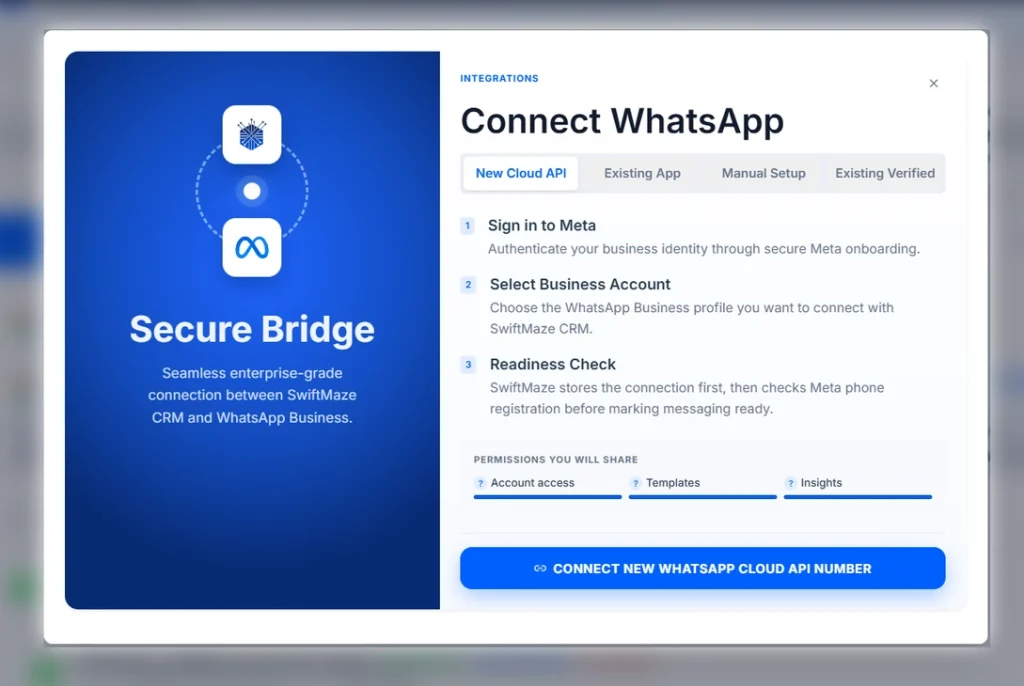
Step 2: Connect Your Meta Account and WhatsApp Number
Open the Meta or WhatsApp integration area and complete the supported Meta onboarding process. You can connect a fresh business number or, if your account is eligible, use WhatsApp Business App coexistence to connect an existing number while continuing to use the app.
Coexistence is not available to every number or account. Check the options shown during onboarding before assuming your existing app and number can both stay active.
Step 3: Connect TradeIndia Inquiry API
Open Marketplace Leads or the related marketplace connection settings in SwiftMaze CRM. Use the TradeIndia API connection details from your seller account to link the inquiry feed.
TradeIndia integrations commonly use a User ID, Profile ID, and API Key. You may find these under Inquiries & Contacts → My Inquiry API in a supported TradeIndia seller panel. The exact fields required by SwiftMaze should be checked in its connection form.
Do not share your API key in an email, screenshot, or public support post. If your account does not show the inquiry API option, ask TradeIndia about eligibility.
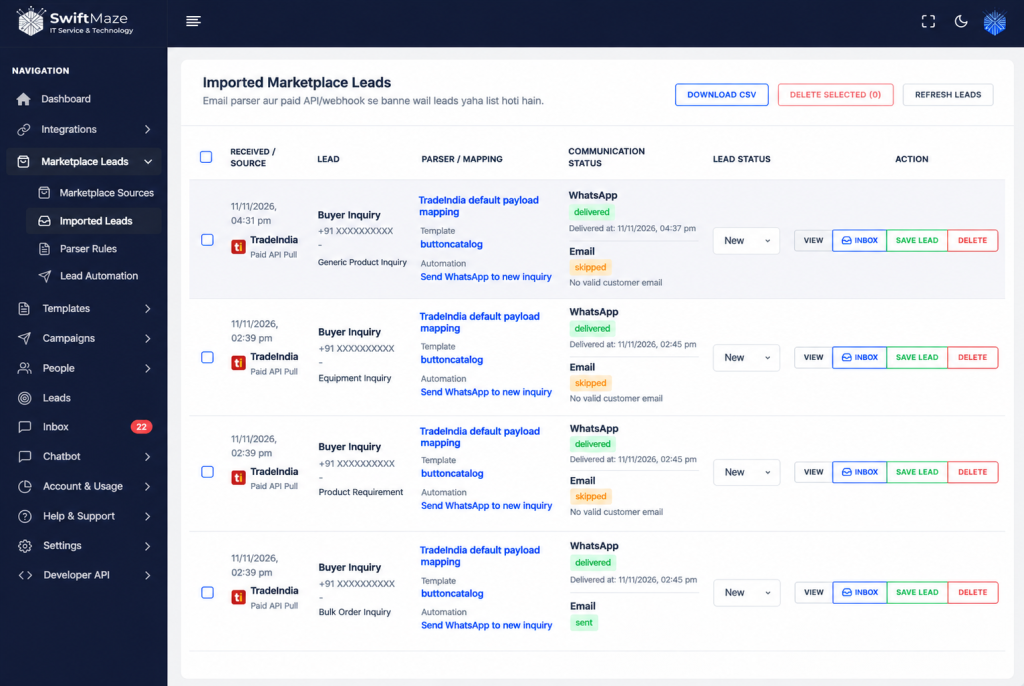
Step 4: Check Marketplace Leads
Once the connection is working, allow the CRM to fetch an available inquiry. Open Marketplace Leads and check the buyer’s name, contact number, product, and any other information available.
Only fields supplied by TradeIndia can be used. A missing phone number or product name should not be replaced with invented information.
Step 5: Prepare a WhatsApp Message Template
Choose or create a message template for the first response. Keep it short and related to the buyer’s specific inquiry. You may submit a Utility template only if its purpose meets Meta’s rules. Meta can approve it in another category or reject it.
For a deeper explanation of approved templates, read our guide to WhatsApp message templates.
Step 6: Set Up the Automatic Reply
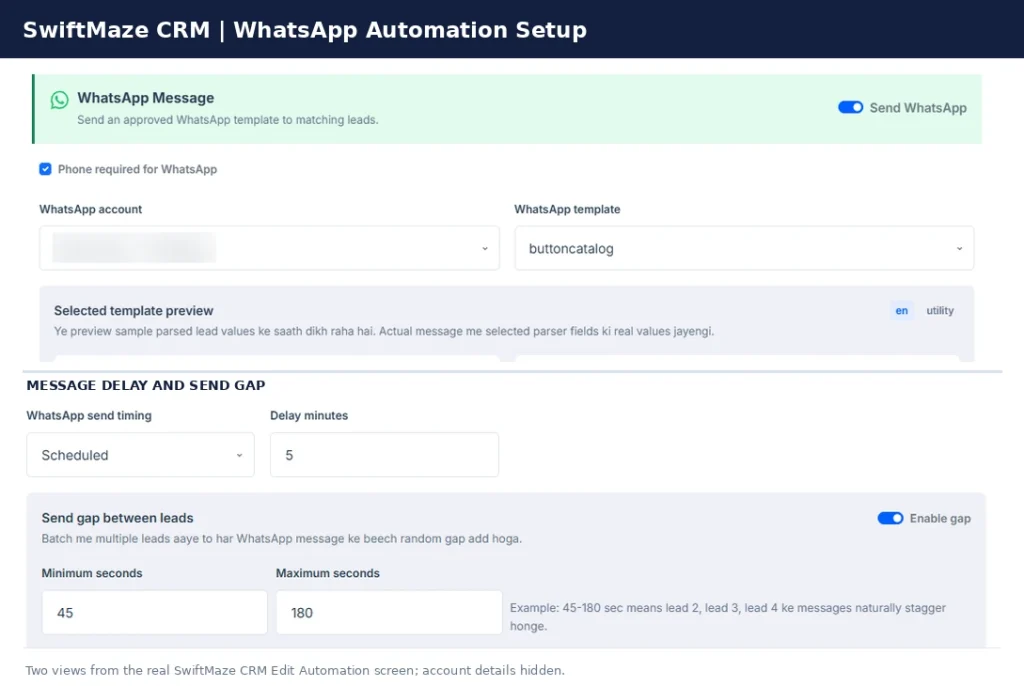
Open the lead automation section in SwiftMaze CRM. Create or edit a workflow for newly fetched TradeIndia inquiries. Select the connected WhatsApp sender number and the approved template. Match available buyer details to the template fields.
Choose a delay based on your needs. For example, use an immediate send for an acknowledgment, or 5 or 10 minutes if you prefer a short wait before the first reply. Save the workflow only after checking the sender, template, and delay.
Step 7: Test Before Enabling It for Buyers
Run a controlled test using a contact that has given permission. Check that the TradeIndia inquiry is fetched, the CRM creates the lead, the template fields contain the correct information, and the selected delay is applied.
Also check the message result. A message being submitted does not always mean it was delivered to the buyer. Test what happens when details are missing, a lead appears more than once, or the sending account has an error.
Sample WhatsApp Reply for a TradeIndia Inquiry
Below is a short example of an inquiry acknowledgment. It is sample wording only and is not a guarantee of Meta Utility approval.
Hello {{1}},
We received your TradeIndia inquiry about {{2}}.
Our team is checking your request and will reply with the next details shortly.
If you want to add any details, please reply here.
{{3}} Team
For example, {{1}} can be the buyer name, {{2}} the product name, and {{3}} your business name. The names and fields used in your actual template must match what SwiftMaze CRM and Meta allow.
A message that promotes unrelated offers or new products may be treated as Marketing rather than Utility. Follow the final category shown by Meta.
When Should You Send the Reply?
Different businesses may prefer different delays. A supplier handling simple product requests may want an acknowledgment as soon as possible. Another business may prefer a short delay to check whether the lead needs special attention.
| Delay | Possible Use | What to Remember |
|---|---|---|
| Immediately | Simple inquiry acknowledgment | Starts after the lead is available to the automation |
| 5 minutes | Short wait before sending | API fetching and message delivery can add time |
| 10 minutes | More time before the first reply | Review whether the wait helps your process |
| Custom delay | A specific business workflow | Use only delay options offered in your CRM |
None of these timings guarantees a buyer reply or a sale. Choose a delay based on your real workload, and review the results after testing.
Can You Use Your Existing WhatsApp Business Number?
SwiftMaze CRM supports a Meta onboarding path for a fresh number and a coexistence path for eligible WhatsApp Business App numbers.
With coexistence, a supported business may keep using the WhatsApp Business App while the connected WhatsApp Business Platform handles automation. But eligibility, setup steps, available features, and any limits depend on the Meta account and number. Do not assume every existing number can be connected this way.
If you’re comparing the two approaches, see our CRM and WhatsApp Business App comparison.
TradeIndia API Automation vs Manual WhatsApp Replies
| Task | Manual Process | With the Configured CRM Automation |
|---|---|---|
| Find new inquiry | Open TradeIndia and check | CRM fetches available API inquiries |
| Save buyer information | Copy and enter details | Lead appears in Marketplace Leads |
| Prepare first message | Type it each time | Use an approved personal template |
| Choose reply timing | Depends on staff availability | Use a configured message delay |
| Answer buyer questions | Sales team handles them | Sales team still handles them |
Automation removes repeated work from the first response. It does not replace product knowledge, quotations, or real customer support.
Important Rules Before Sending WhatsApp Messages
Get WhatsApp Permission
A TradeIndia inquiry does not automatically prove the buyer agreed to WhatsApp messages. Use WhatsApp only when you have the required permission and respect any request to stop messages.
Use the Category Approved by Meta
An inquiry acknowledgment may be submitted as Utility only when it meets the current rules. Meta makes the final decision and may classify the message as Marketing. The message must follow the purpose of its approved template.
Know About Message Charges
TradeIndia API access, SwiftMaze CRM subscription fees, and Meta WhatsApp messaging charges may be separate. Charges depend on your account and the message category. This is not a free-messaging promise.
Check API and Delivery Results
The TradeIndia API connection must remain active for new leads to be imported. The CRM also needs a valid recipient number and available WhatsApp sending service. Check errors before trying again, and avoid repeated unwanted messages.
For the official rules, see the WhatsApp Business Messaging Policy.
Frequently Asked Questions
Can I Automatically Reply to TradeIndia Inquiries on WhatsApp?
Yes. With a working TradeIndia inquiry API connection, SwiftMaze CRM can collect available leads and send a configured WhatsApp template when the required messaging conditions are met.
Does This Integration Use TradeIndia API?
Yes. Unlike an email-based IndiaMART workflow, this TradeIndia setup fetches leads through the TradeIndia inquiry API. You need eligible seller API access.
Can I Set a 5-Minute or 10-Minute Delay?
Yes. SwiftMaze CRM offers message-delay settings such as immediate, 5 minutes, or 10 minutes. The delay is part of the sending workflow; it does not mean the API fetch happens instantly.
Can I Use My Existing WhatsApp Business App Number?
Possibly. Eligible accounts can use the supported coexistence onboarding option. You can also connect a fresh number through the supported Meta flow. Availability depends on Meta and account requirements.
Is a Utility Template Always Approved for TradeIndia Inquiries?
No. Meta reviews the message purpose and wording. An inquiry-related acknowledgment may be eligible, but Meta can reclassify or reject it. Recipient permission is also required.
What Happens if a Buyer Has No Valid WhatsApp Number?
The system cannot send a WhatsApp message without a usable recipient number. Check the lead and correct the issue rather than guessing contact details.
Does Automation Guarantee More Sales?
No. It can save manual effort and help provide a timely first response, but buyers still need real answers about products, prices, and delivery.
Do I Need to Know Coding?
The normal workflow is managed through CRM connection and automation settings. You still need the right TradeIndia API details, Meta account access, and a valid WhatsApp setup.
Final Thoughts
TradeIndia sellers should not need to copy every buyer number and type the same first WhatsApp reply all day. When the API connection and messaging rules are set correctly, SwiftMaze CRM can fetch inquiries, save them in Marketplace Leads, and send a personalized reply at the delay you choose.
Start with a test, confirm the message category and buyer consent, and keep your sales team ready for real follow-ups. For more about managing leads and team conversations, read our WhatsApp shared inbox guide.
Want to simplify your TradeIndia lead replies? Explore SwiftMaze WhatsApp CRM or contact the SwiftMaze team to discuss TradeIndia integration and request a demonstration.
Related Guides
- Read More: IndiaMART WhatsApp Automation Without a Paid Lead API
- Read More: WhatsApp Campaigns with Approved Templates
- Read More: WhatsApp CRM vs WhatsApp Business App
Last modified: November 11, 2026